
Siperb Web Softphone
The Siperb web softphone runs entirely in your browser — no installation, no plugin, no admin rights required. Open a tab, sign in, and you have a full SIP phone. Close the tab and it’s gone. It works on any device that runs Chrome, Edge, Firefox, or Safari.
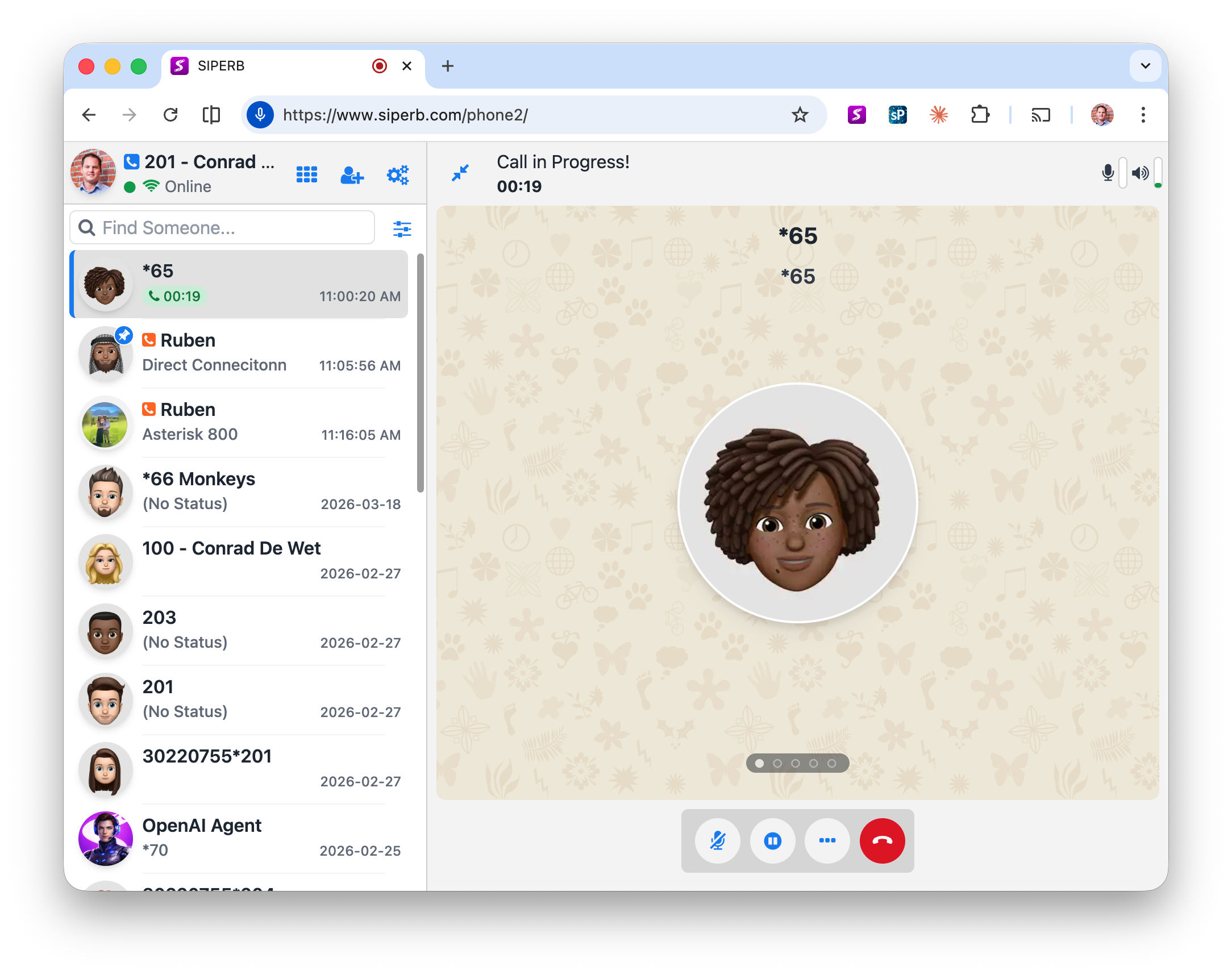
No installation — anywhere you have a browser
Because it runs in the browser, the web softphone works on any machine you sit down at — your office PC, a home laptop, a colleague’s computer, or a shared workstation. There is nothing to install, no IT request to raise, and no licence to move. Log in and you’re on the phone.
This makes the web softphone the obvious choice for:
- Hybrid workers who split time between locations
- Teams where shared workstations are common
- Anyone who can’t or doesn’t want to install software on their machine
- Quick access from any browser without touching the desktop environment
Sits alongside your other tools
Because it’s a tab, the Siperb web phone lives exactly where you already work. You can place it side by side with your CRM, keep it in a pinned tab next to your helpdesk, or pop it into a separate browser window on a second screen. No alt-tabbing to a separate application.
This makes it particularly well-suited to CRM and helpdesk workflows. When a customer calls, you can see the incoming number, search your CRM on the adjacent tab, and handle the call without moving your hands from the keyboard. The phone is part of the workflow rather than a separate tool.
Click-to-dial from any web page
The web phone supports click-to-dial — any phone number displayed on a web page (in your CRM, on a contact record, in an email thread opened in the browser) can be clicked to dial immediately. No copying, no typing. See Click-to-Dial → for setup details.
Browser compatibility
Siperb uses WebRTC for call audio, which is natively supported by all modern browsers. The web phone has been tested and confirmed working on:
- Chrome (recommended — best WebRTC performance)
- Edge (Chromium-based — same performance as Chrome)
- Firefox
- Safari (macOS and iOS)
Getting started
- Open the web phone → — nothing to install
- Getting Started with Siperb → — create an account and connect your PBX
- Connecting Siperb to Your PBX →
- Click-to-Dial →
- Prefer a desktop app? →
- Need mobile? →