
Web Phone — Click to Dial
Click to Dial — also known as Click to Call — is one of the most useful features you can add to any web application. Instead of copying a phone number and dialling it manually, your users click a number on the page and the call starts instantly. It’s the kind of small touch that makes a big difference to productivity, especially in CRMs, helpdesks, and ticketing systems where staff are making calls all day.
Web Phone treats Click to Dial as a first-class feature. Once the phone is installed and registered, initiating a call is a single API call away.
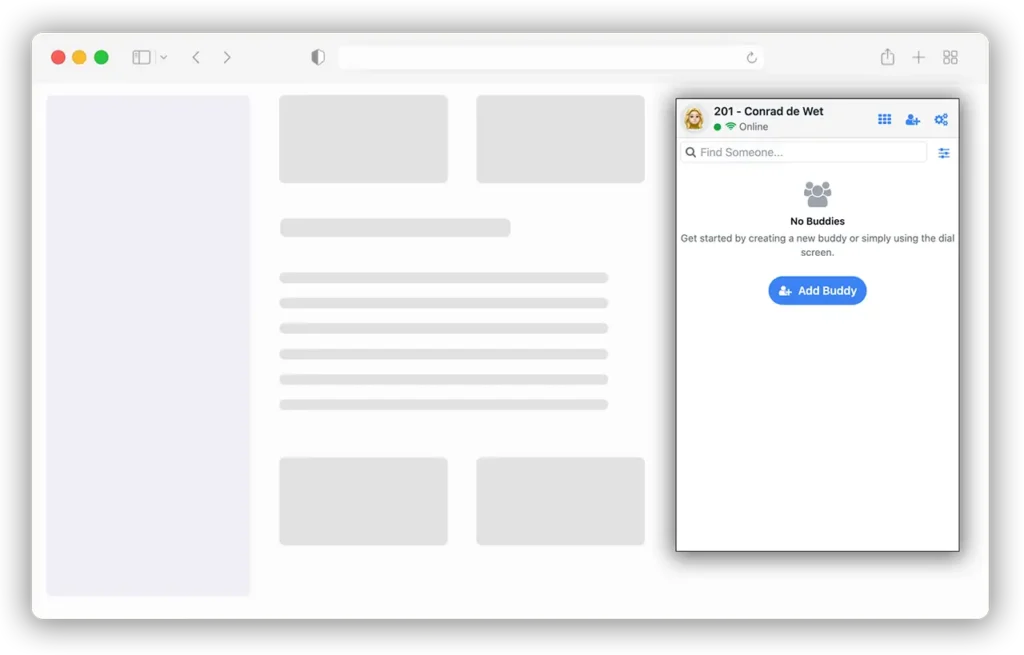
How It Works
In a typical Click to Dial setup, phone numbers are embedded in your page’s HTML — inside a CRM contact card, a support ticket, or a customer profile. When the user clicks a number, your JavaScript picks up the event and tells the Web Phone to dial it. The phone handles the rest: SIP signalling, media setup, and the calling UI.
Because Web Phone runs directly in the browser via WebRTC, this works across all platforms without plugins. The user stays in their workflow — no app switching, no context lost.
Prerequisites
Before you can use Click to Dial, you need to have Web Phone installed and registered using one of the three integration methods described in the documentation:
- Manual Setup (Direct to PBX)
- Siperb Provisioning (Direct to PBX)
- Siperb Provisioning with the Proxy (recommended)
The phone must be loaded, provisioned, and registered before you can dial out.
The Browser Phone API
Once the phone is running in its iframe, you can interact with it through the phone object on the iframe’s content window. Here’s a basic Click to Dial implementation:
const thePhoneFrame = document.getElementById('phoneFrame');

// You need to make sure you are on the 'window.phone' namespace in the IFRAME
const phone = (thePhoneFrame.contentWindow && thePhoneFrame.contentWindow.phone)
    ? thePhoneFrame.contentWindow.phone
    : null;

if (phone) {
    const NumberToDial = '+44 20 7946 0958'; // The number to dial
    const WithVideo = false;                  // true for video, false for audio only
    const Provider = 'sip';                   // The internal provider
    phone.Dial(NumberToDial, WithVideo, Provider);
} else {
    console.error('Phone API not available in IFRAME.');
}
Wiring It Up to Page Elements
A practical example — making every phone number on the page clickable:
const thePhoneFrame = document.getElementById('phoneFrame');

// Find all elements with a data-dial attribute
document.querySelectorAll('[data-dial]').forEach(function(element) {
    element.style.cursor = 'pointer';
    element.addEventListener('click', function() {
        const phone = (thePhoneFrame.contentWindow && thePhoneFrame.contentWindow.phone)
            ? thePhoneFrame.contentWindow.phone
            : null;
        if (!phone) {
            console.error('Phone API not available in IFRAME.');
            return;
        }
        const NumberToDial = this.getAttribute('data-dial');
        const WithVideo = false;
        const Provider = 'sip';
        phone.Dial(NumberToDial, WithVideo, Provider);
    });
});

// Usage in your HTML:
// <span data-dial="+44 20 7946 0958">+44 20 7946 0958</span>
// <button data-dial="100">Call Reception</button>Browser Tab Splitting
Modern browsers — particularly Chrome — now support splitting a single tab into side-by-side views. This is great for workflows like viewing a CRM alongside a softphone. However, there’s an important limitation to be aware of.
When a tab is split, each view runs in an isolated browser context. This means the standard Click to Dial mechanism (accessing phoneFrame.contentWindow.phone) doesn’t work across split-tab boundaries — the JavaScript in one view can’t directly access the iframe in the other.
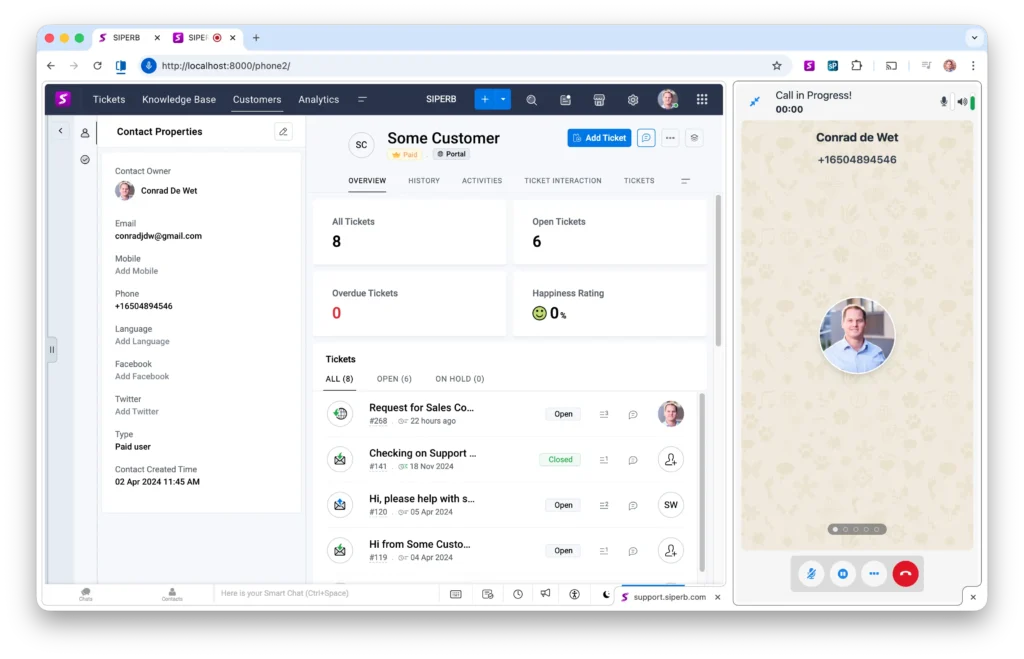
The Solution: Browser Extension
To support Click to Dial in split-tab or multi-view layouts, you can install the Siperb Browser Extension from the Chrome Web Store. The extension acts as a lightweight bridge between browser contexts, forwarding click events and call instructions to the Web Phone regardless of how tabs are arranged.
The extension is intentionally simple — and many teams choose to build their own version tailored to their application. A custom extension can use the same Browser Phone API, giving you full control over how Click to Dial events are detected and routed.
In short:
- Standard page layouts or same-page iframe — no extension needed
- Split tabs or multi-view layouts — browser extension recommended
Use Cases
- CRM integration — click a contact’s number in Salesforce, HubSpot, or your custom CRM and call them instantly
- Helpdesk / ticketing — support agents click a customer’s number from the ticket and the call starts without leaving the page
- Internal directories — company phone lists where every extension is one click away
- E-commerce — “Call us” buttons that connect directly to a sales or support agent